Connexion
Gigabyte X870E Aorus Pro X3D Ice Review
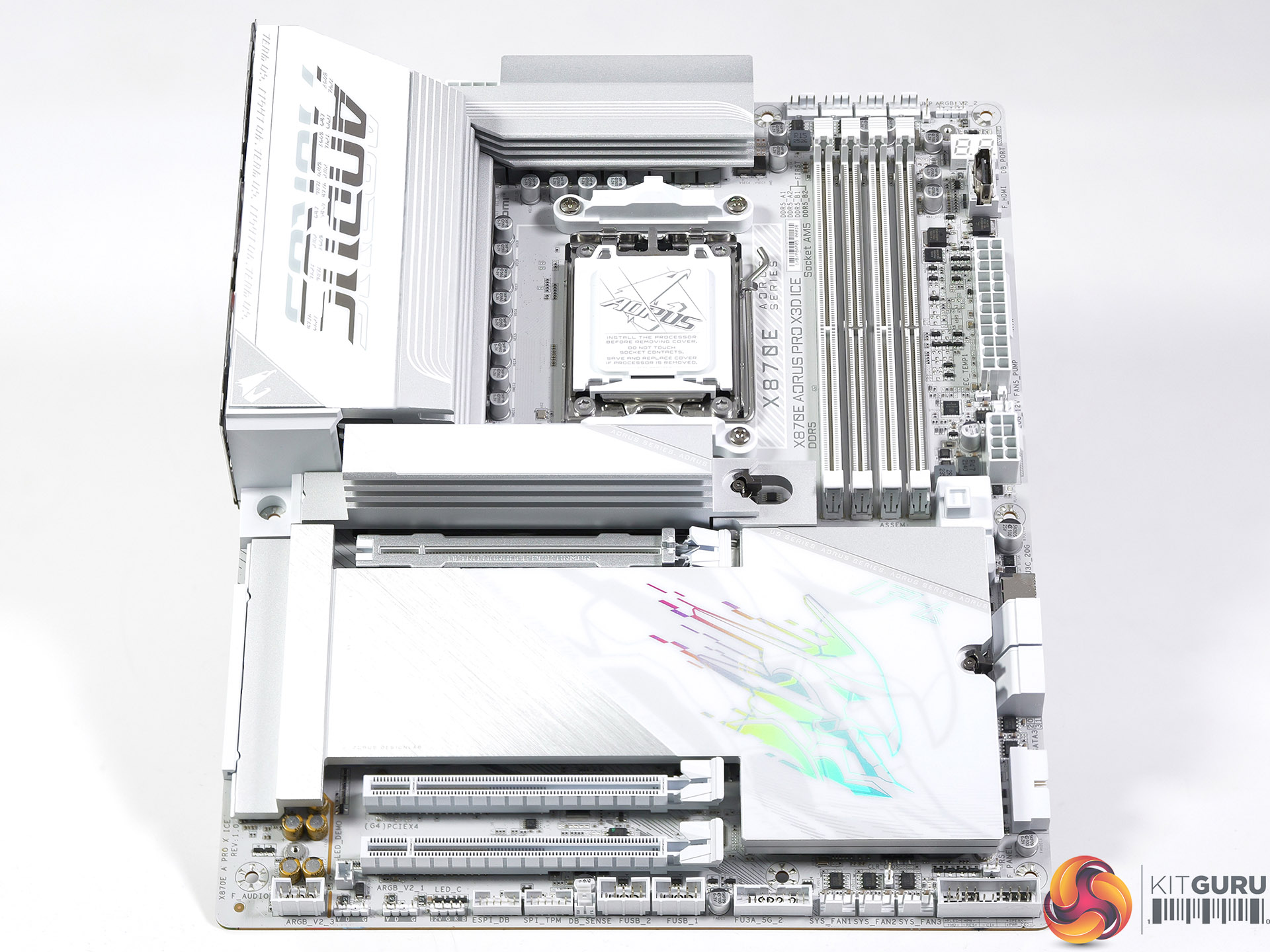
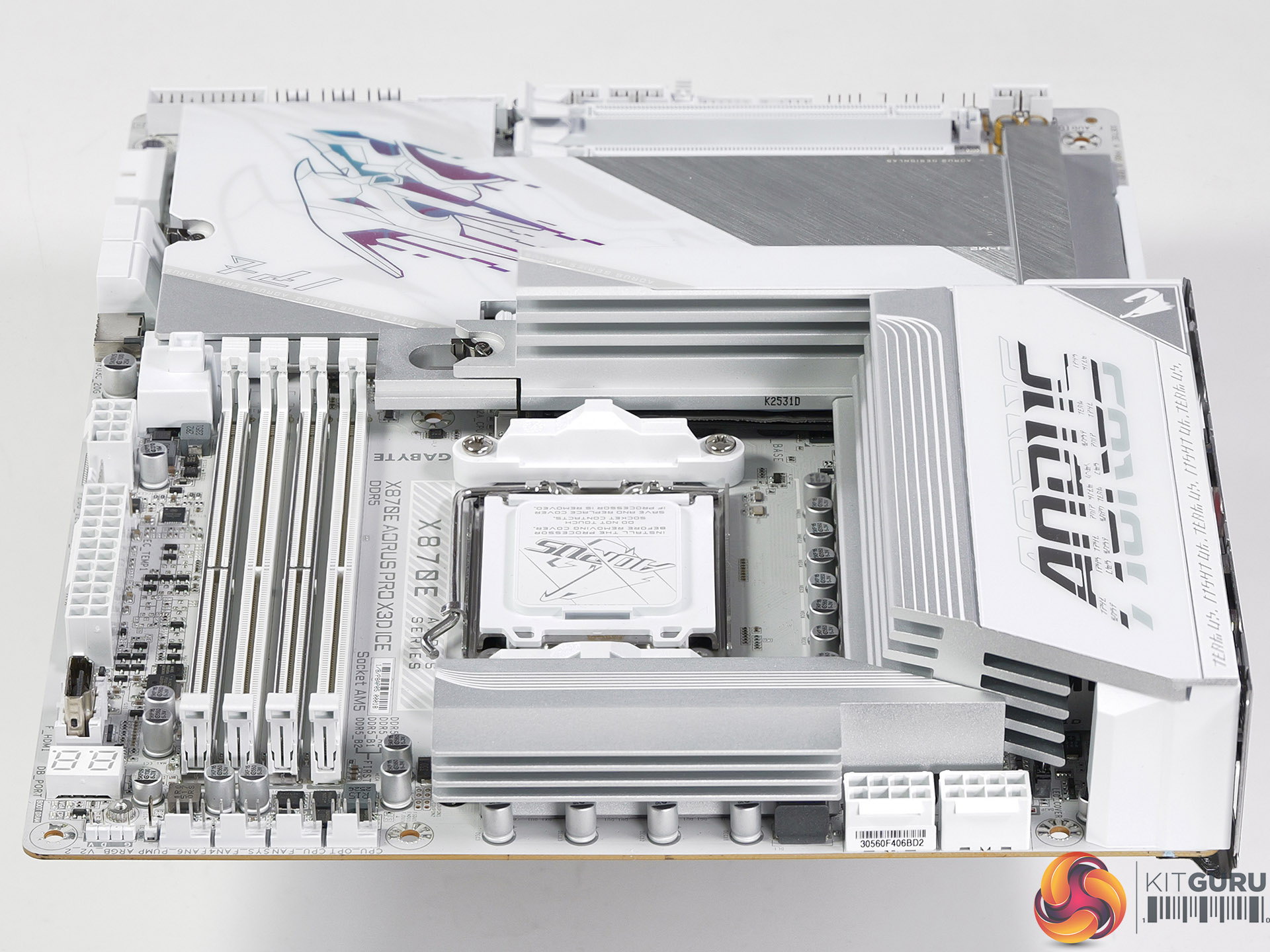
When Gigabyte sent us their X870E Aorus Pro X3D Ice we figured a refresh of AMD X870E was a minor matter and a review would take two or three days at most. Instead we spent a solid week figuring out how Gigabyte's X3D Turbo Mode 2 goes about its business and yes, it includes AI. Buckle up, this video is 25 minutes in length, and for good reason.
Timestamps:
00:00 Start
00:56 Updates and ‘AI Claims’
03:28 Unboxing / Accessories
05:32 Featureset / Ports / Connectors / VRMs
07:11 Removing heatsinks & more connectors
08:45 Back Drilling / Micro holes
09:16 BIOS and AI Claims
09:48 Testing Methodology
10:55 Geekbench 6 Multi Core
12:00 DDR5 8000 tests
12:44 Geekbench 6 Single Core
13:28 Cinebench R23 Multi Core
13:53 Whats going on then?
14:45 Leo gets to the root
15:53 AIDA64 Memory Bandwidth
17:00 Far Cry 6
18:30 Assassins Creed Mirage
19:31 Cyberpunk 2077
20:46 Total War Pharoah
21:45 OnFly Software
22:38 The Experience / Pricing
23:42 Closing Thoughts
Key features
- X870E X3D features vs. previous X870E models
- X3D Turbo Mode 2
- 8 layer PCB with Back-Drill
- DDR5 now up to 9000 MT/sec
- VRM Heatsinks have Direct-Touch Heatpipe
- PCIe Gen 5 x16 not shared with M.2
- All M.2 have EZ Match and not just the main M.2
- All models have Back Armour
- DriverBIOS
- Front USB with 65W PD
- All models have Rear EZ-Buttons
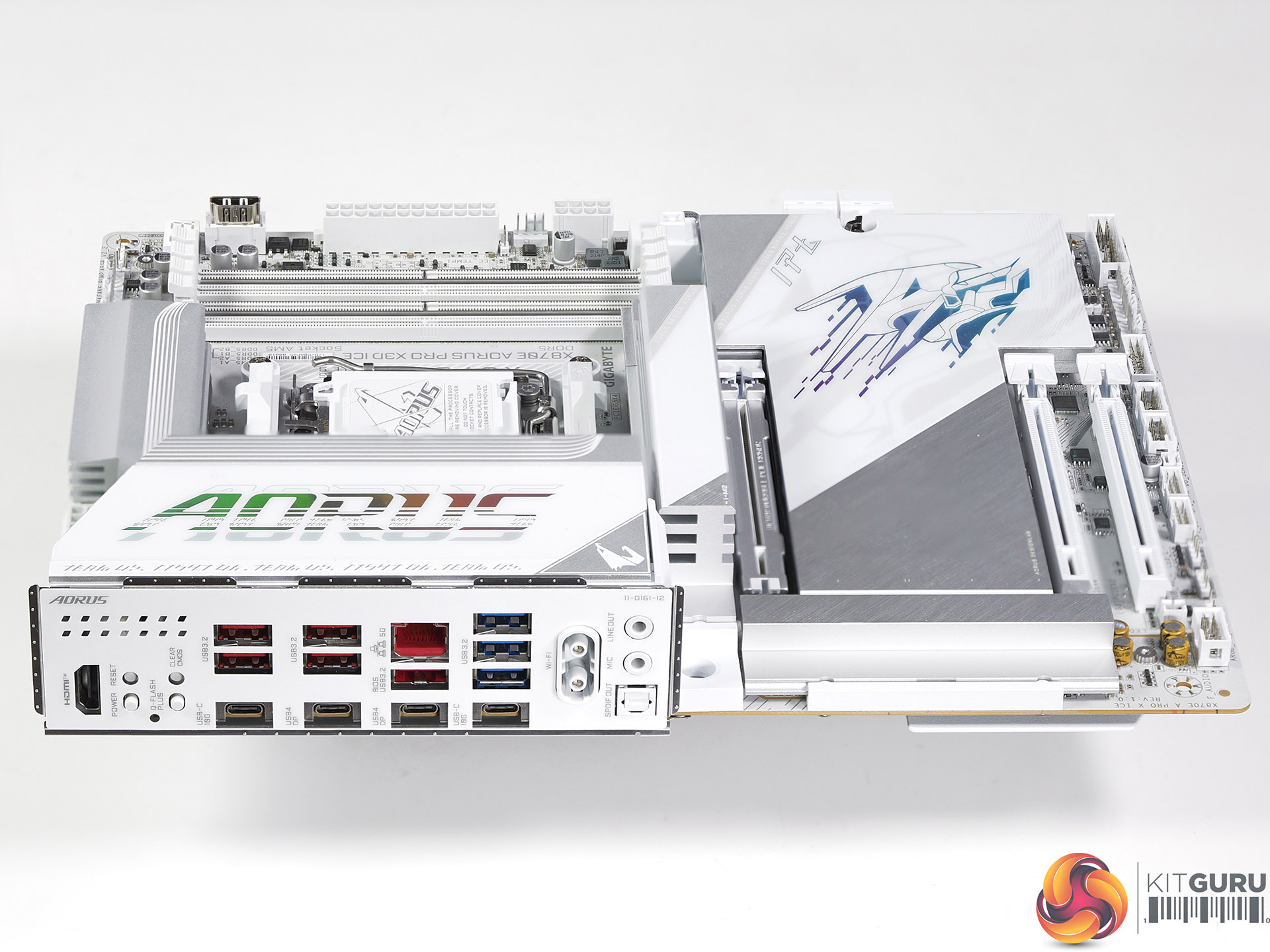
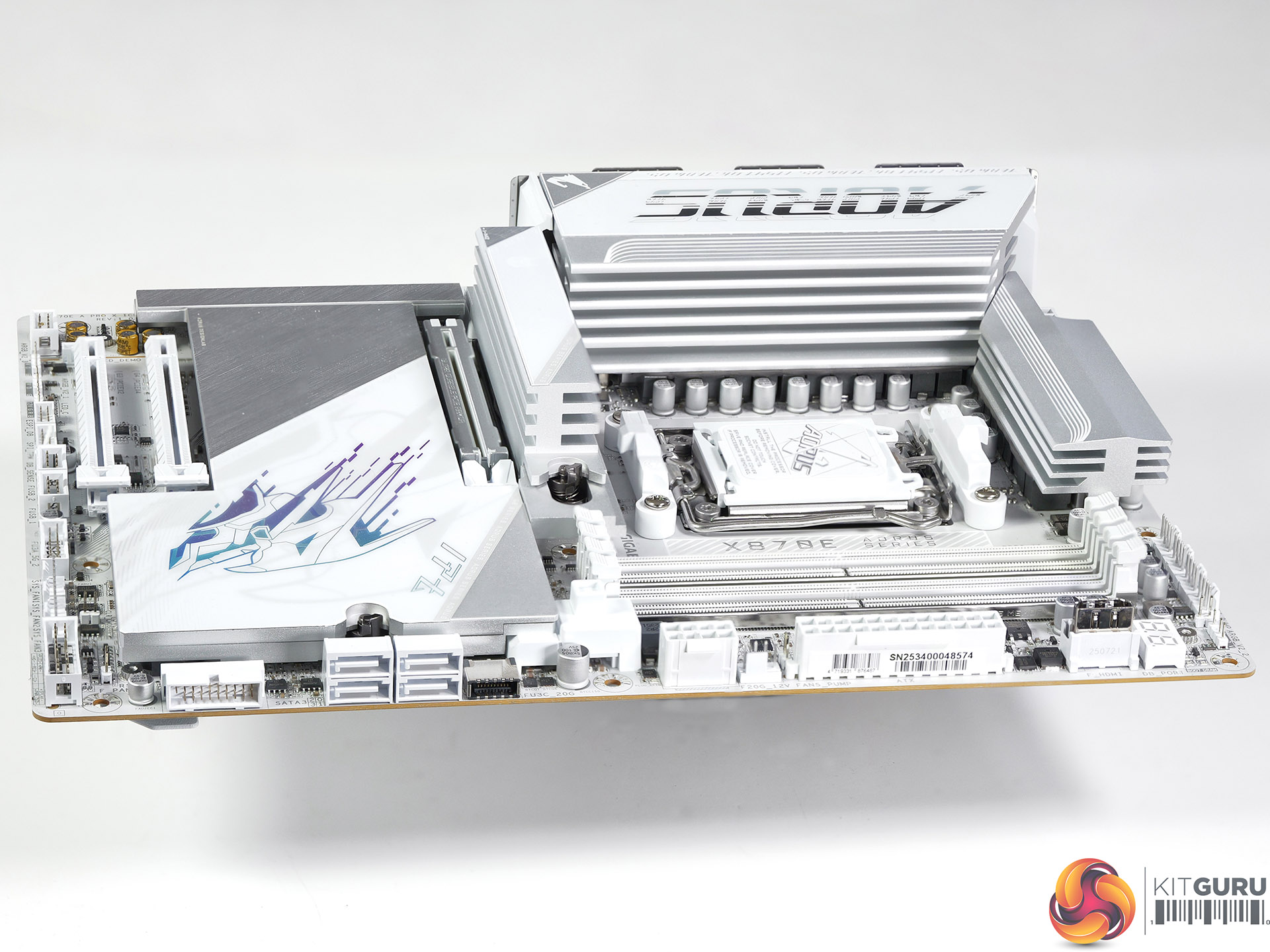
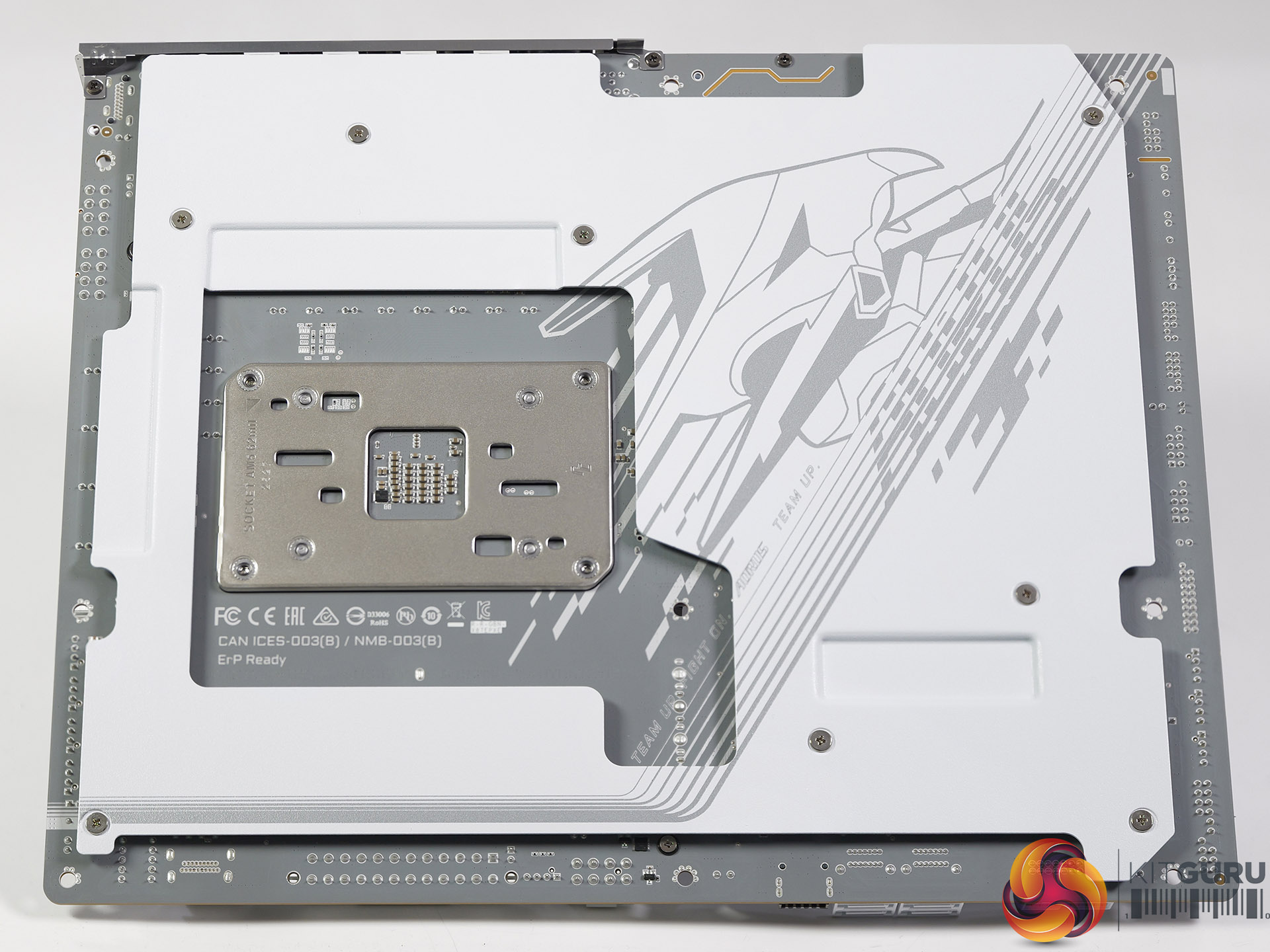
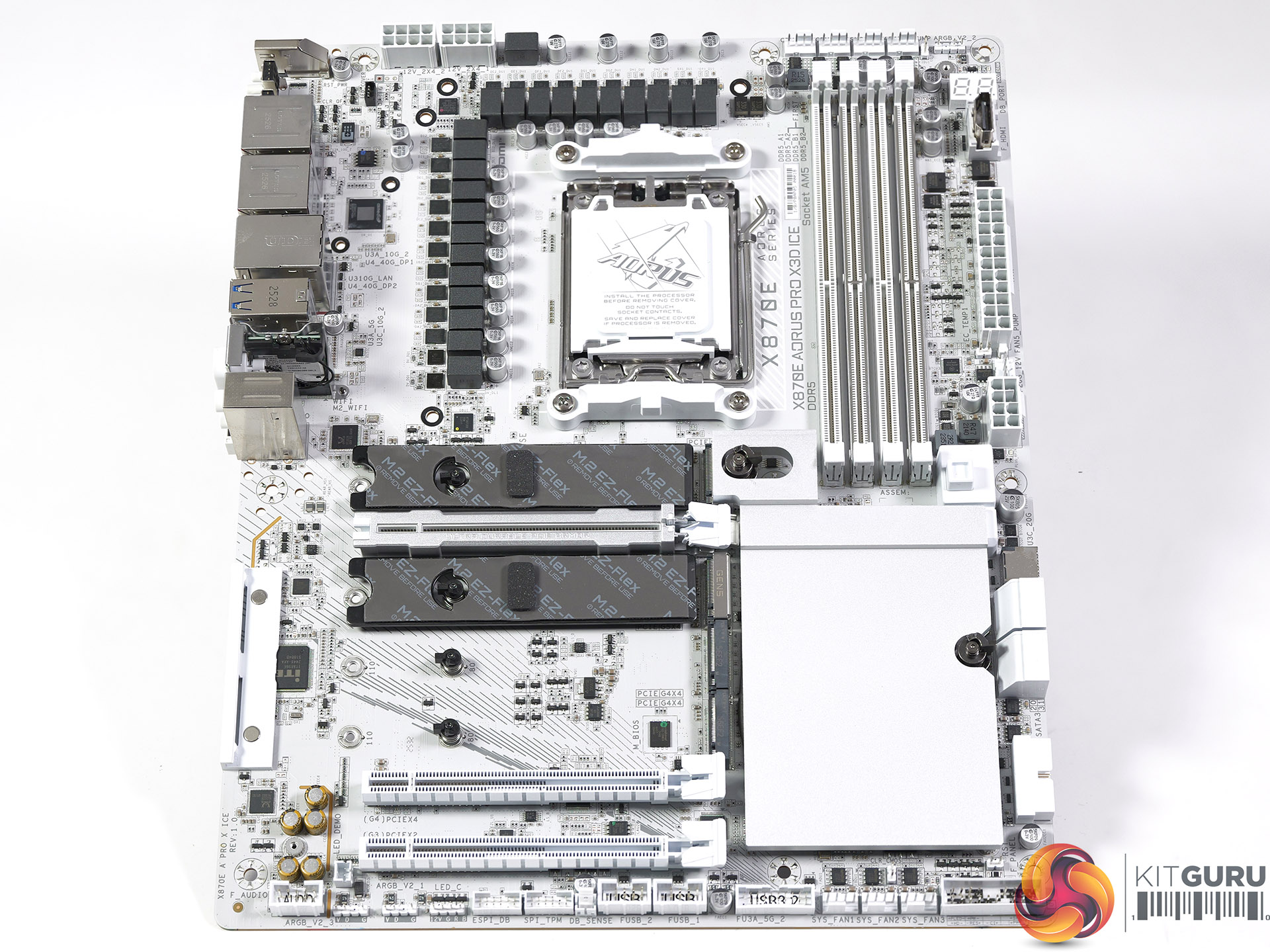
Specification:
- CPU support: AMD Socket AM5 for AMD Ryzen 9000 / 8000 / 7000 Series processors
- Chipset: AMD X870E
- VRMs:
- Infineon XDPE192C3D 12-phase controller
- 18x 110A Infineon PMC41430 Vcore
- 2x 110A Infineon PMC41430 SoC
- 2x 60A DrMOS OnSemi 302155P (Misc)
- Memory support: DDR5 up to 9000 (O.C.), 4x DDR5 DIMM slots up to 256GB; dual-channel architecture; non-ECC unbuffered DIMMs
- Expansion slots: 1x PCIe 5.0 x16 (CPU), 1x PCIe 4.0 x16 (x4, chipset), 1x PCIe 3.0 x16 (x2, chipset)
- Storage:
- 1x M.2 PCIe 5.0 x4 (CPU)
- 1x M.2 PCIe 5.0 x4 (CPU, shared with USB4)
- 2x M.2 PCIe 4.0 x4 (chipset)
- 4x SATA 6Gb/s
- USB:
- 2x USB4 40Gbps Type-C (rear)
- 1x USB 3.2 Gen 2×2 20Gbps Type-C (front, up to 65W PD 3.0 / QC 4+)
- 2x USB 3.2 Gen 2 10Gbps Type-C (rear)
- 5x USB 3.2 Gen 2 10Gbps Type-A (rear)
- 3x USB 3.2 Gen 1 5Gbps Type-A (rear)
- 4x USB 3.2 Gen 1 5Gbps Type-A (front)
- 4x USB 2.0 Type-A (front)
- Audio: Realtek ALC1220 codec, HD Audio 7.1-channel
- Ethernet: Realtek 5GbE
- Wireless: Qualcomm QCNCM865 Wi-Fi 7 and Bluetooth 5.4
- Fan headers: 8x PWM fan headers
- RGB headers: 3x ARGB headers, 1x RGB header
- BIOS: 64MB flash BIOS chip
- Form factor: ATX, 305 x 244 mm
Testing
As we show in our video, the X3D Turbo Mode 2 feature required a good deal of investigation. We could figure out Off and Standard easily enough, however Max Performance and Extreme Gaming caused us some confusion. As you will see from our charts, Extreme Gaming does not necessarily boost gaming performance.
Test system
- Processor: AMD Ryzen 7 9800X3D
- Memory: 32GB ADATA XPG Lancer RGB DDR5-6000
- CPU Cooler: Phanteks Glacier One 360MPH
- Graphics card: MSI GeForce 4090 Ventus 3X 24GB
- Power supply: Seasonic Vertex GX-1200 ATX 3
- SSD: 1TB Crucial T700 M.2 NVMe
- OS: Windows 11
Performance and Overclocking
Geekbench 6 Multi Core
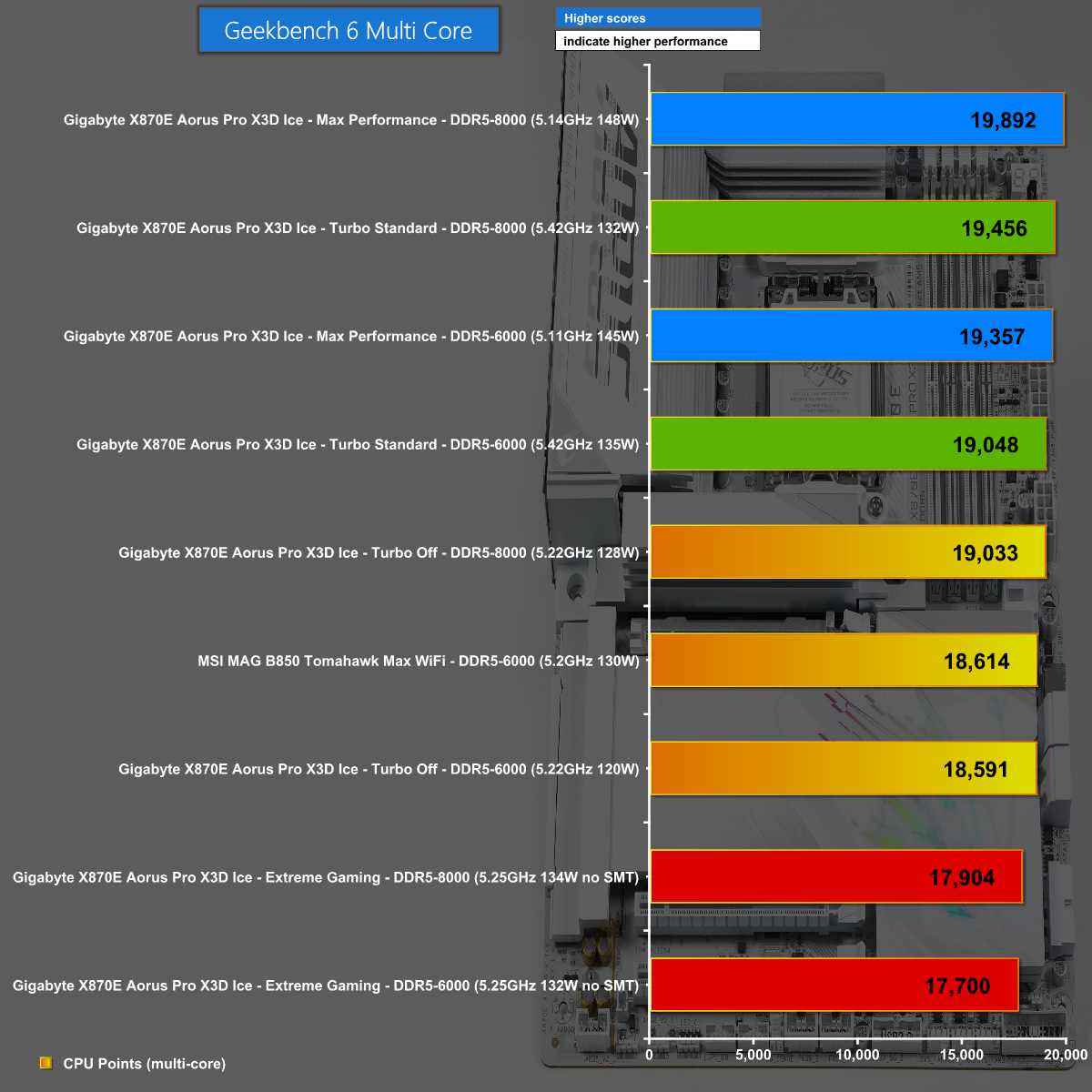
In Geekbench 6 Multi Core we see the Max Performance profile wins the day with DDR5-8000 memory. The curiosity here is that the Extreme Gaming profile scores well below the baseline Auto settings, which is due to SMT being disabled.
Geekbench 6 Single Core
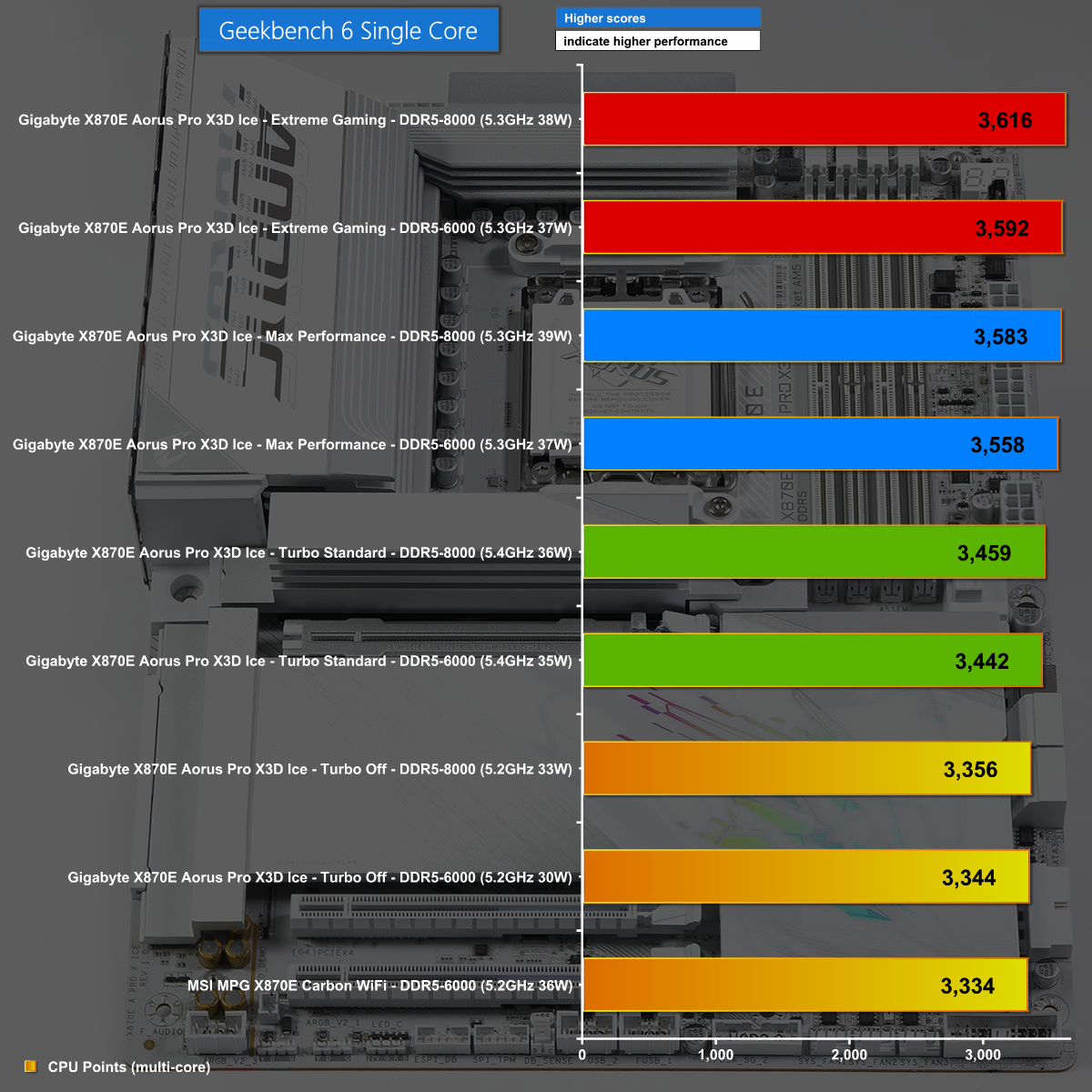
By contrast in Geekbench 6 Single Core the Extreme Gaming profile tops the chart as each single core is drawing slightly more power and running a very few Megahertz faster.
Far Cry 6 at 1080p
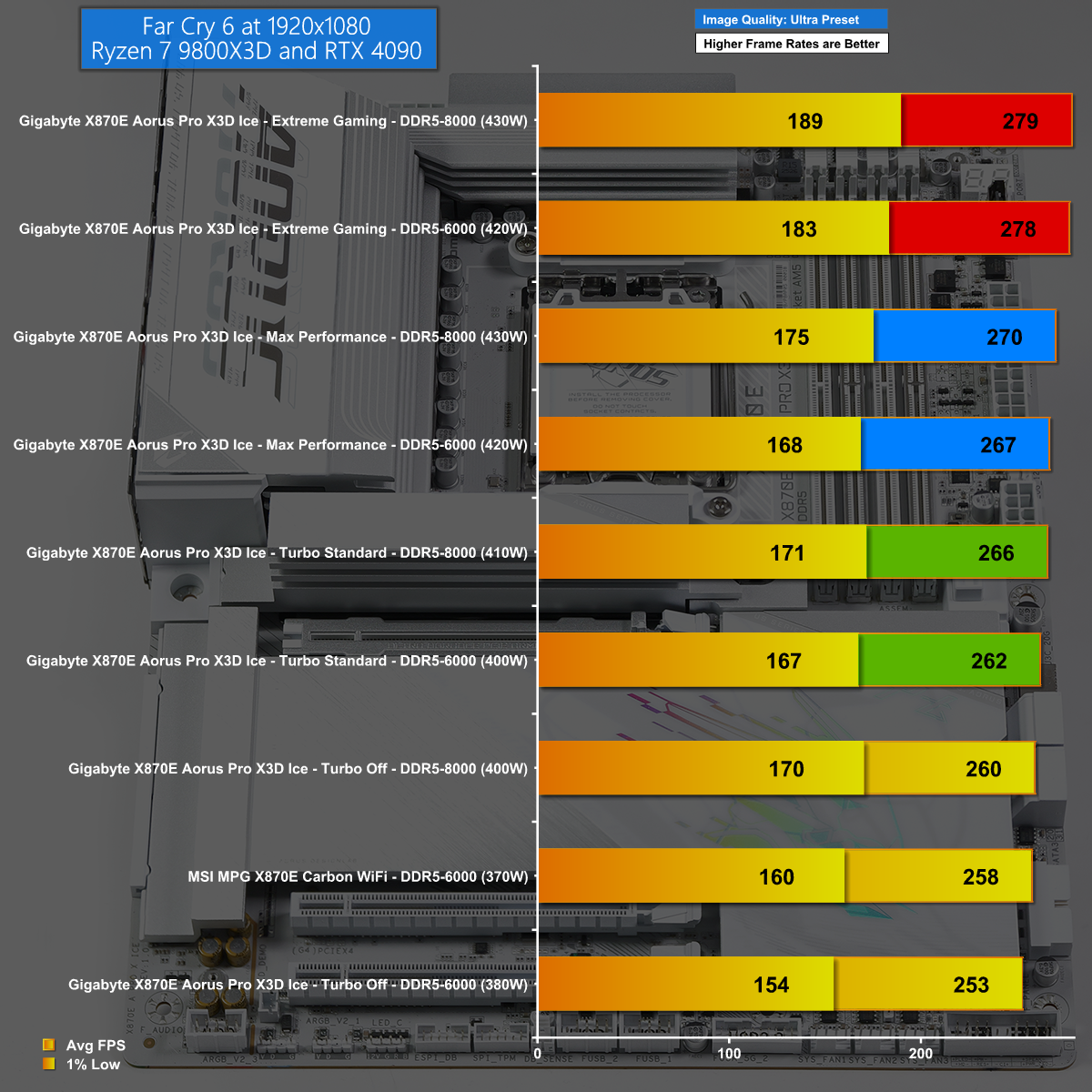
The Extreme Gaming profile wins by a comfortable margin in Far Cry 6 at 1080p where the combination of high processor speed and low CPU requirements acts as a killer combination.
Total War: Pharaoh at 1080p
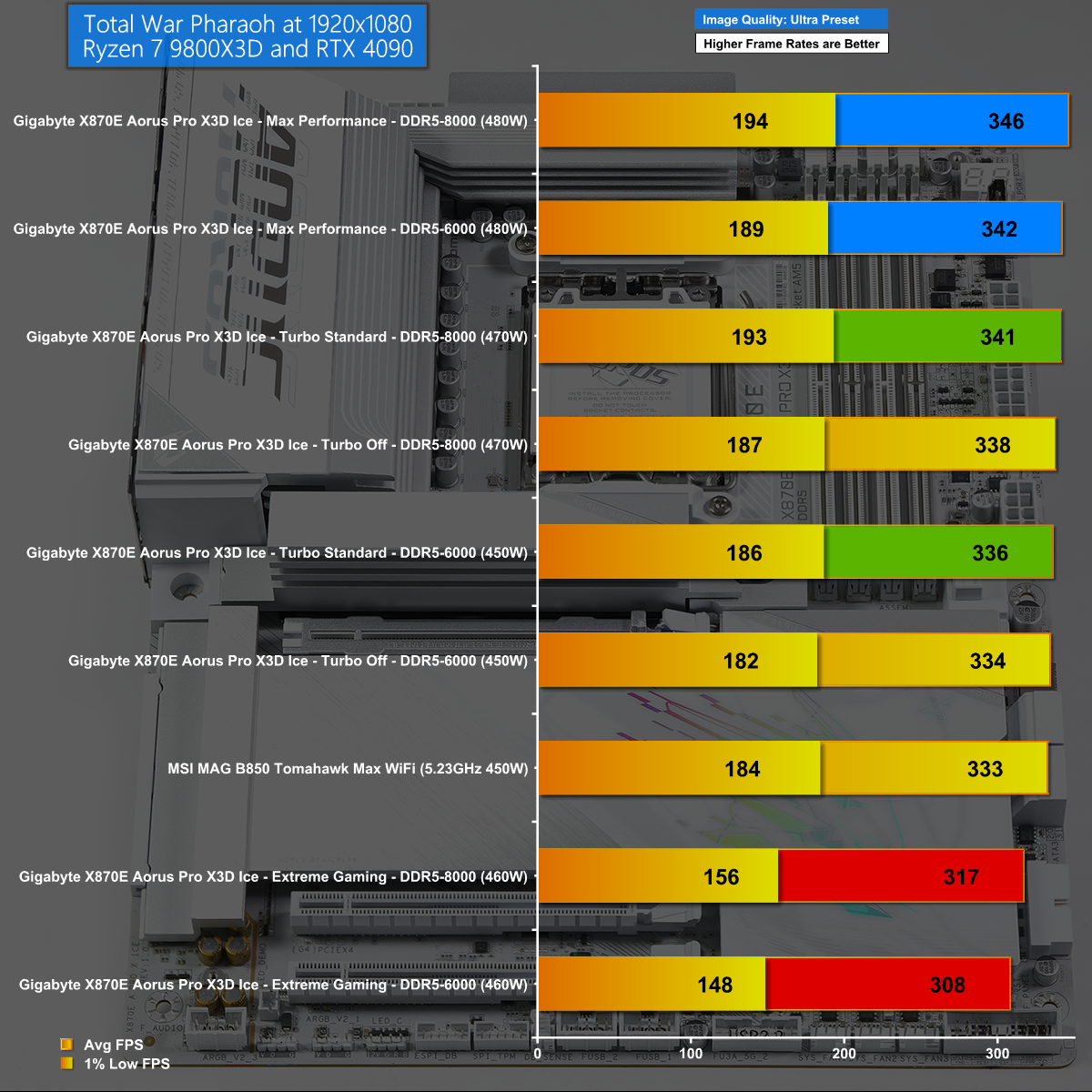
We show Total War: Pharaoh at 1080p to demonstrate that things can get complicated. In this instance the Extreme Gaming profile is an utter disaster and far worse than default Auto settings.
Closing Thoughts
Our review of the Gigabyte X870E Aorus Pro X3D Ice started easily and developed into something of a battle.
The easy part is the hardware and features which are pretty much beyond reproach. The hardware is good quality and the cooling is excellent, and if you were simply plugging together a new AMD Ryzen PC you should certain consider this motherboard in a battle against the MSI MPG X870E Carbon WiFi (review HERE) and the Asus ROG Crosshair X870E Hero (review HERE).

Things take a turn for the complicated when we consider the X3D Turbo Mode 2 settings as we suddenly have a PC that can perform superbly in one test and poorly in another. Or, as we show above, superbly well in one game and badly in another.
The only solution we found is to run a benchmark test and then change the Turbo setting and run another test, and another, and perhaps another. By the end of the proceedings you should have a PC that does an excellent job, but you may well question the effort that is required.
You can buy the Gigabyte X870E Aorus Pro X3D Ice for £387 HERE.
Pros:
- Loads of ports and connectors.
- DIY features speed up your PC build.
- High quality hardware with excellent cooling.
- Good performance (depending on Turbo Mode 2 behaviour).
Cons:
- Turbo Mode 2 requires testing and investigation to get the best performance.
- The price is fairly high.
KitGuru says: Gigabyte X870E Aorus Pro X3D Ice has some complicated control systems that require careful consideration.