Connexion
Never Miss Your Doorbell While Wearing Headphones on iPhone

Noise-canceling headphones are great for blocking out distractions, but they can also block out sounds you actually need to hear, like a courier at the front door with your all-important package. Well, thanks to an Apple accessibility feature, your iPhone can do the listening for you and alert you when your doorbell rings.
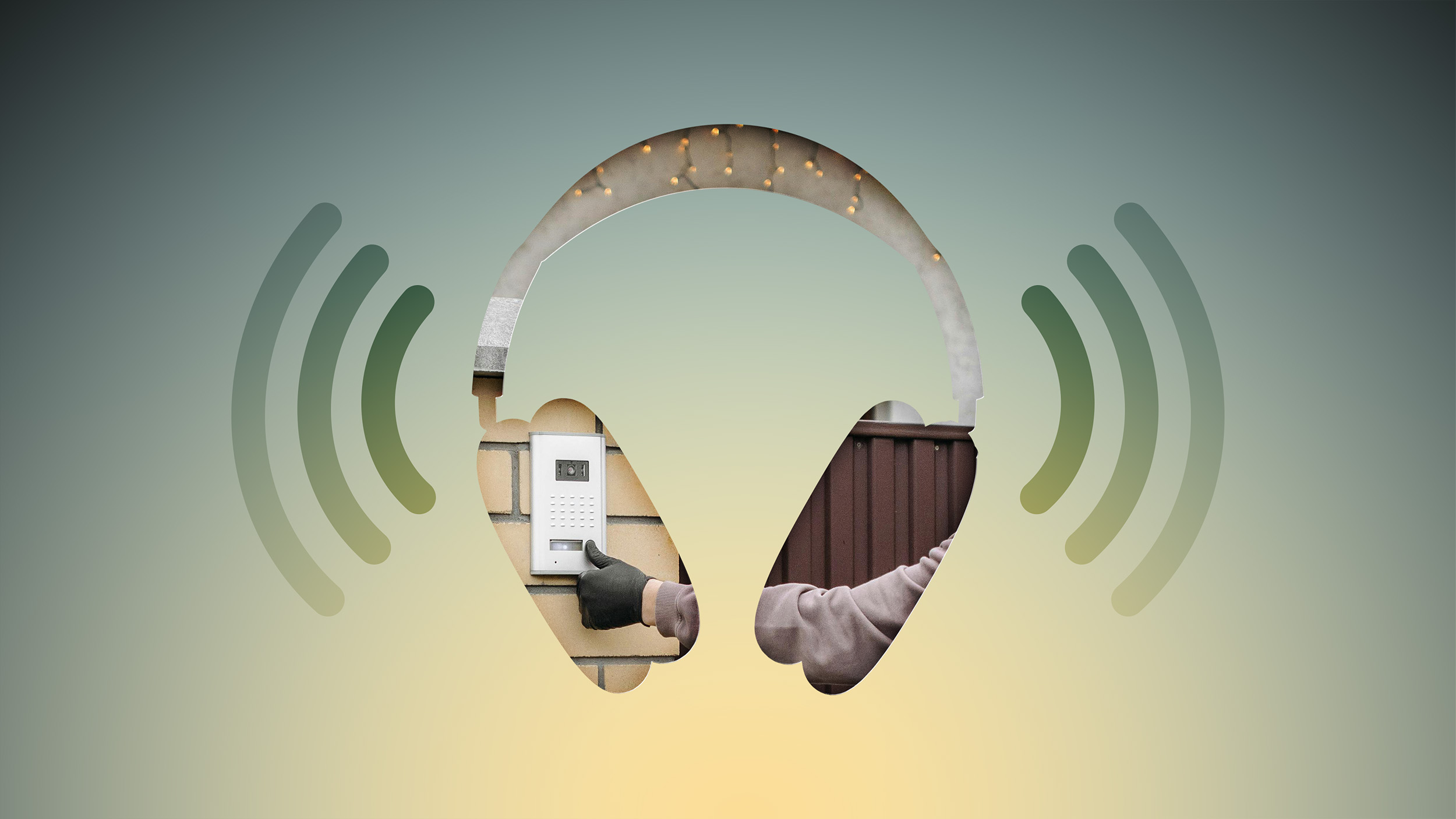
Meet Sound Recognition, the feature in question that uses your iPhone's microphone to continuously monitor for specific sounds. When it detects one, you'll receive a notification that plays through your connected headphones, along with a vibration on your iPhone (or Apple Watch if you're wearing one).
The feature is primarily designed for people who are deaf or hard of hearing, but it's equally useful for anyone who works from home and regularly wears AirPods or noise-canceling headphones.
If your iPhone doesn't reliably detect your specific doorbell, you can train it to recognize the sound by following these steps:
Once Sound Recognition is enabled, iOS automatically adds a toggle to Control Center. From here, you can press and hold the Sound Recognition icon to quickly enable or disable specific sounds without diving into Settings, which is handy if you only want doorbell detection when you're at home wearing headphones.
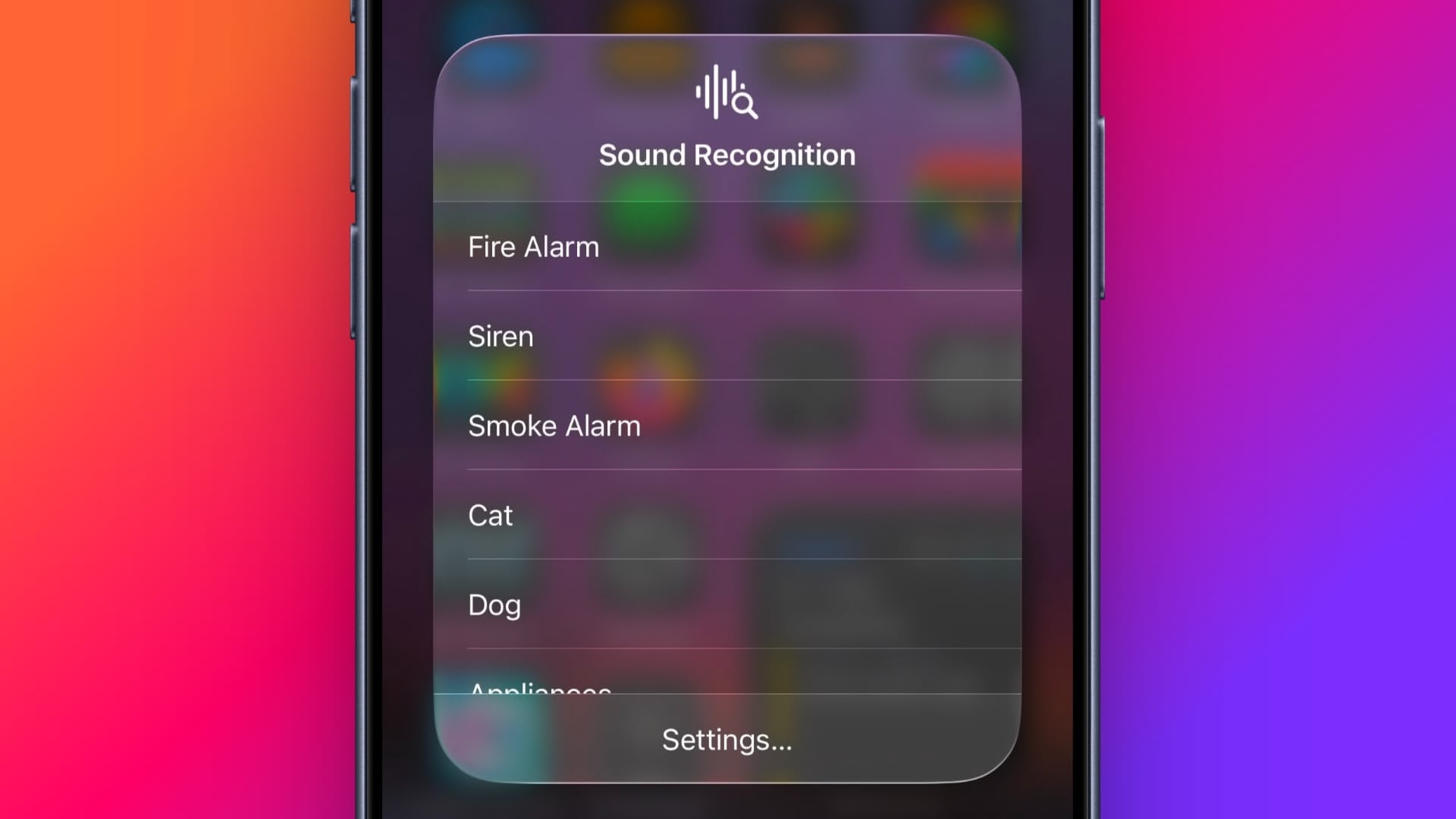
Sound Recognition can also detect smoke alarms, dog barking, babies crying, water running, and more. Just keep in mind that Apple advises against relying on this feature in high-risk or emergency situations.
This article, "Never Miss Your Doorbell While Wearing Headphones on iPhone" first appeared on MacRumors.com
Discuss this article in our forums
Meet Sound Recognition, the feature in question that uses your iPhone's microphone to continuously monitor for specific sounds. When it detects one, you'll receive a notification that plays through your connected headphones, along with a vibration on your iPhone (or Apple Watch if you're wearing one).
The feature is primarily designed for people who are deaf or hard of hearing, but it's equally useful for anyone who works from home and regularly wears AirPods or noise-canceling headphones.
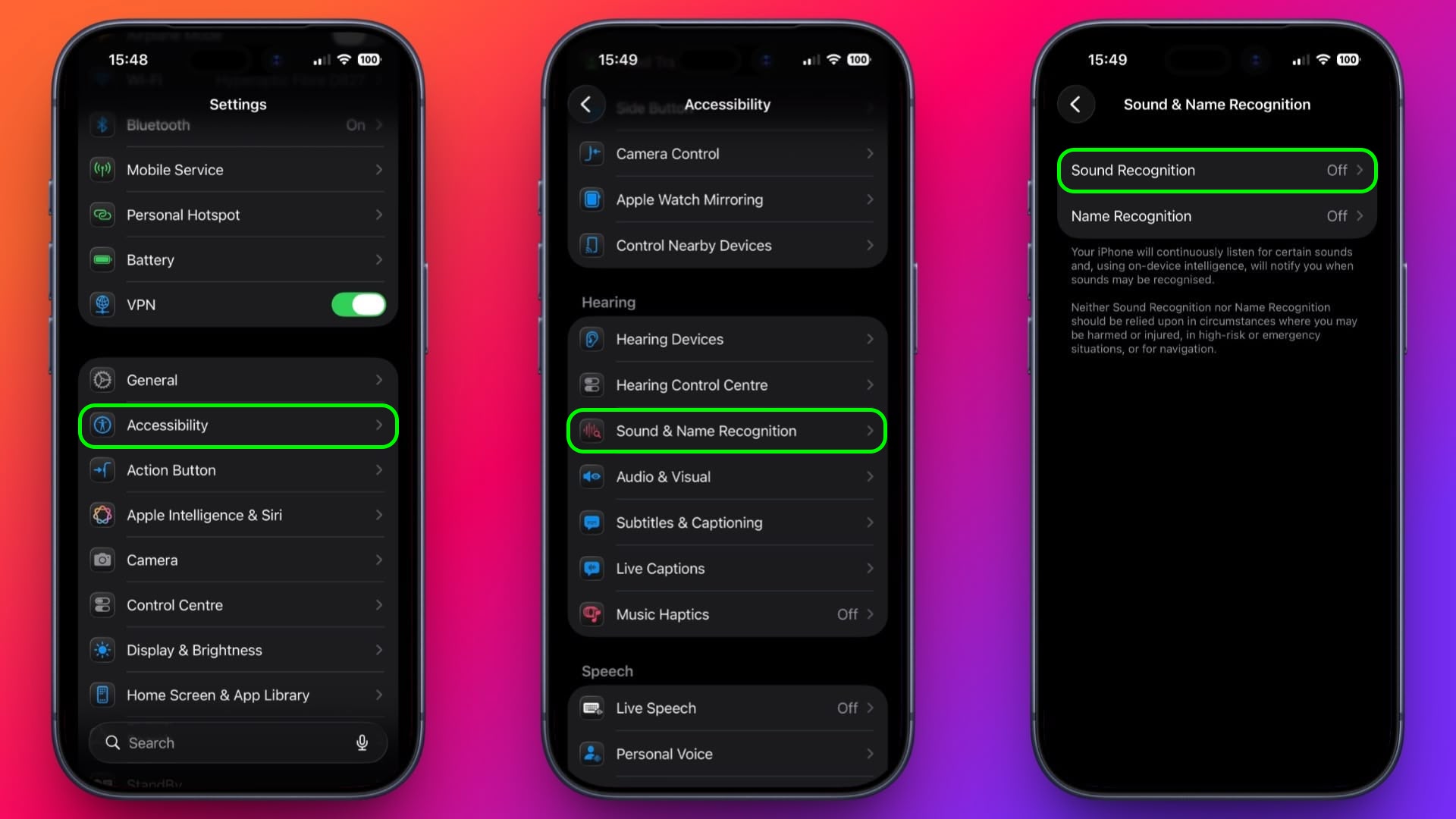
How to Enable Doorbell Alerts
- Open Settings on your iPhone.
- Tap Accessibility.
- Under "Hearing," tap Sound & Name Recognition, then tap through to Sound Recognition.
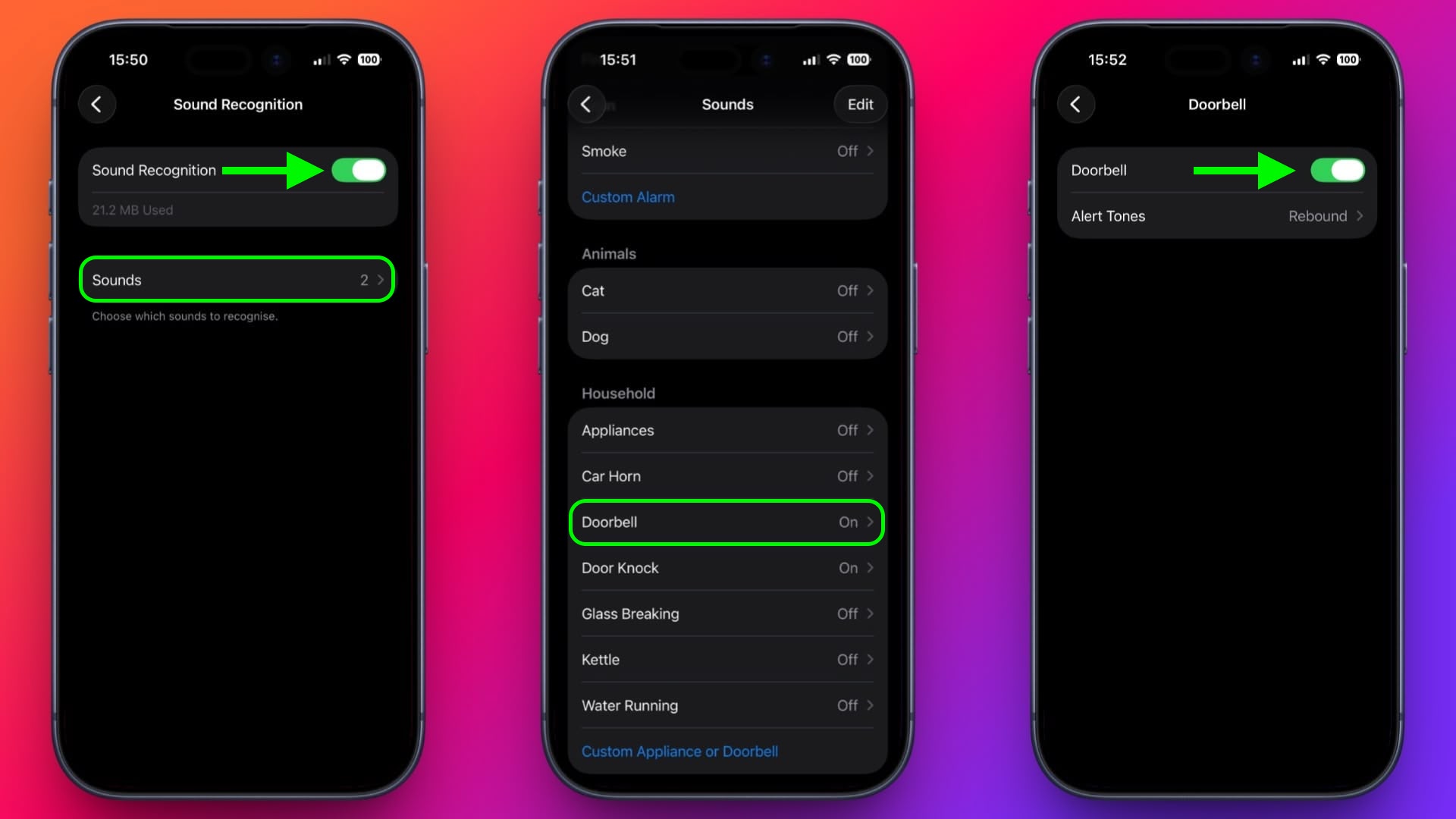
- Toggle on Sound Recognition, then tap Sounds.
- Under "Household," tap Door Bell and toggle it on in the next screen. You'll also see the option to choose a specific alert tone.
Training Your iPhone to Recognize Your Doorbell
If your iPhone doesn't reliably detect your specific doorbell, you can train it to recognize the sound by following these steps:
- Go to Settings ➝ Accessibility ➝ Sound & Name Recognition ➝ Sound Recognition ➝ Sounds.
- Tap Custom Appliance or Doorbell, then enter a name.
- Place your iPhone near the doorbell and tap Start Listening.
- Ring your doorbell. Repeat this five times to complete the training.
Quick Access via Control Center
Once Sound Recognition is enabled, iOS automatically adds a toggle to Control Center. From here, you can press and hold the Sound Recognition icon to quickly enable or disable specific sounds without diving into Settings, which is handy if you only want doorbell detection when you're at home wearing headphones.
Sound Recognition can also detect smoke alarms, dog barking, babies crying, water running, and more. Just keep in mind that Apple advises against relying on this feature in high-risk or emergency situations.
This article, "Never Miss Your Doorbell While Wearing Headphones on iPhone" first appeared on MacRumors.com
Discuss this article in our forums
 Note: MacRumors is an affiliate partner with Amazon. When you click a link and make a purchase, we may receive a small payment, which helps us keep the site running.
 Note: MacRumors is an affiliate partner with Amazon. When you click a link and make a purchase, we may receive a small payment, which helps us keep the site running.