Your files deserve a separate copy
A hardware failure, an accidental mistake, or a computer that will not start can make photos and documents difficult to recover. Guardian helps you keep a copy on a USB drive recognized by Windows, without having to organize every folder yourself.
Simple
Choose what you want to back up; Guardian guides you, checks the copied files, and provides a summary. It is simple to use and designed for efficient copying, avoiding unnecessary copies of unchanged files. Your data stays with you: no account or Internet connection is needed to back up or restore.
Smart
Its goal is deliberately simple: connect a storage device, click "Save My Photos" or "Save All My Files", and let the software do the rest. In addition to the user's usual folders, Guardian automatically searches for other important documents to back up, even when they are stored in unusual locations. This search is intelligent: the software avoids copying application logos, system files, or notification sounds. Instead, it focuses on what really matters: files that were created or modified by the user.
Guardian, step by step
Here is the complete journey, from your first backup to recovering your files. The images are recreated interface previews with fictional data; click an image to enlarge it.
1. Connect your drive and choose an action
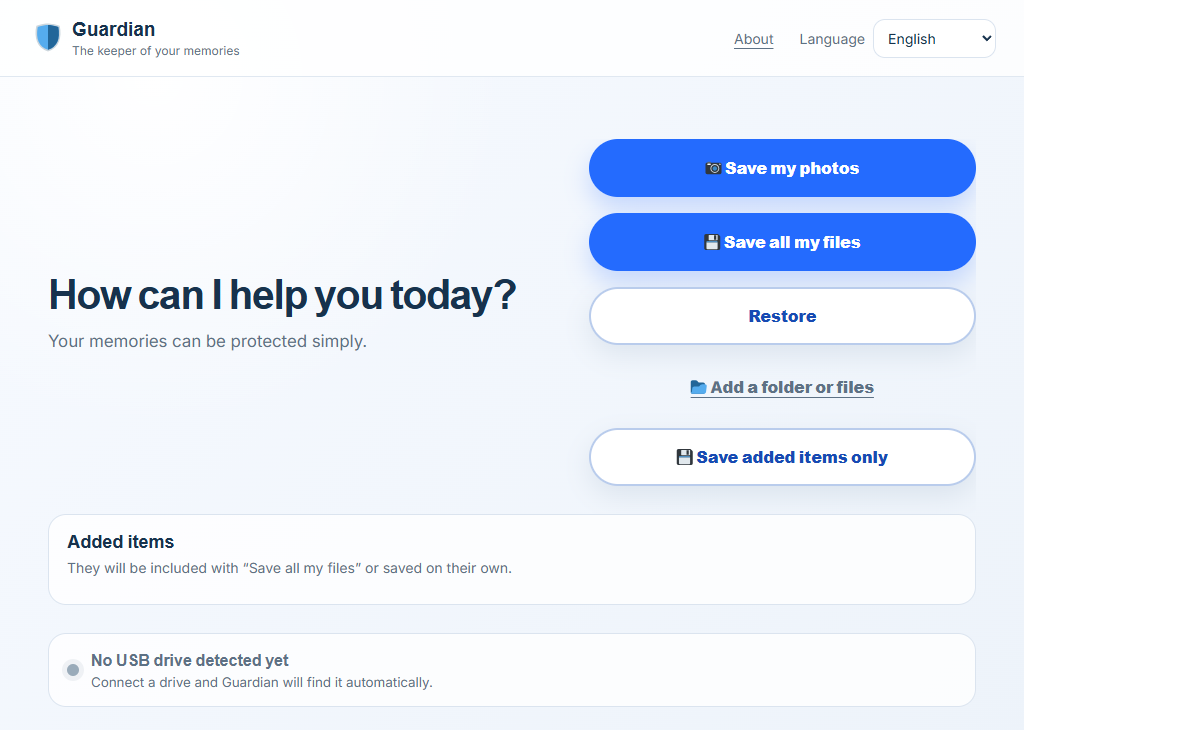
Open Guardian, connect a USB drive or another removable drive recognized by Windows, and choose “Save my photos” or “Save all my files”. Guardian looks for your usual personal folders, even if you have moved them to another drive. It can also find other folders containing personal files.
You do not need to prepare a folder structure or select every file individually. You can still add to the selection yourself.
2. Add what matters to you
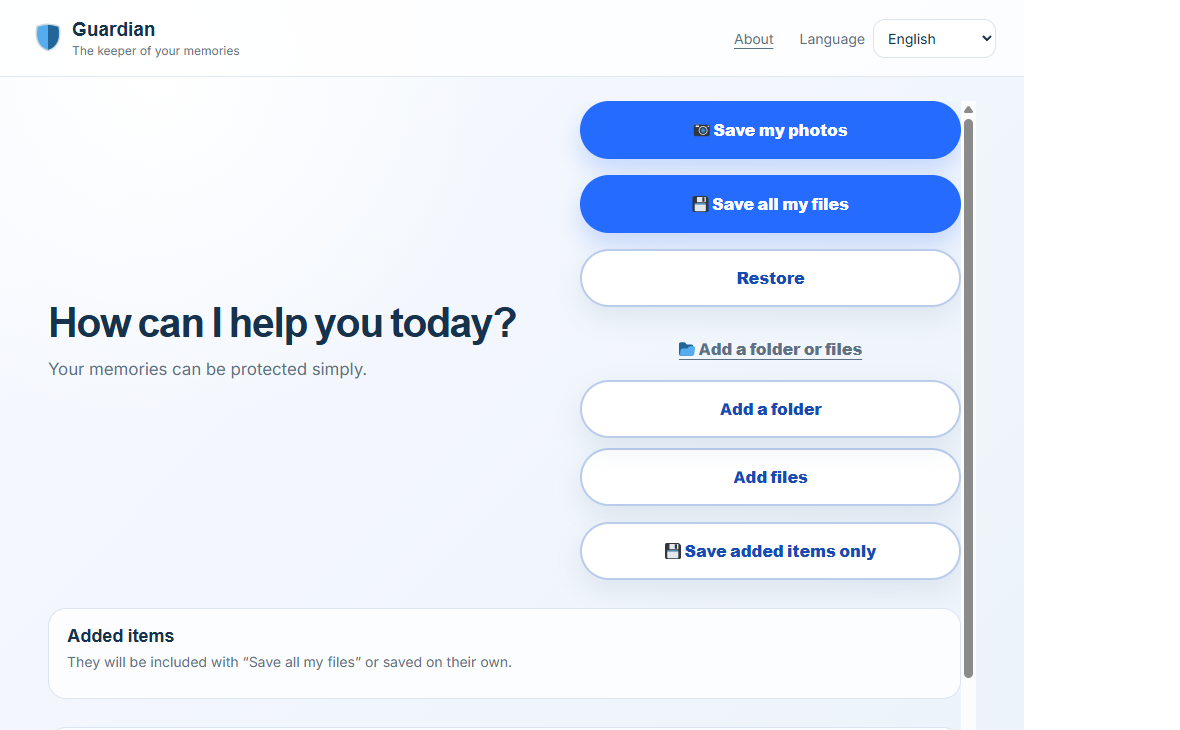
From the home screen, add specific folders or files, such as a work folder or your Downloads folder. These additions remain saved until you remove them: they can be included in “Save all my files” or backed up on their own using the dedicated button.
3. Check your selection before copying
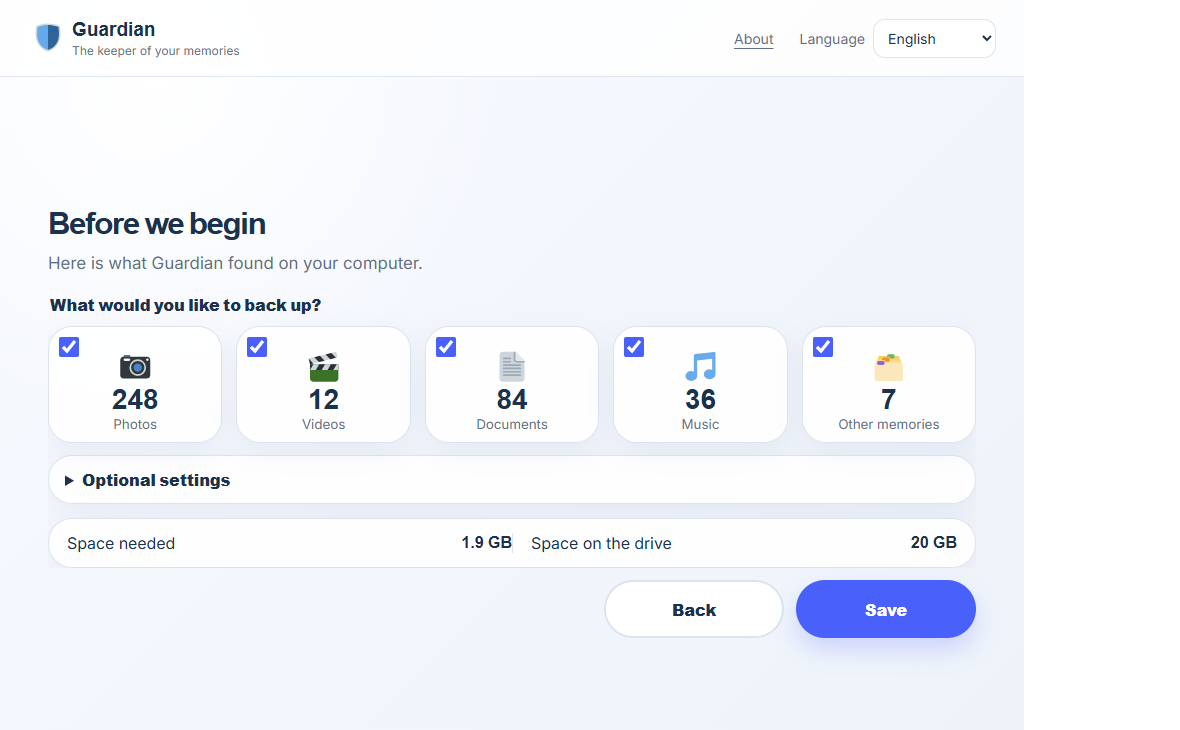
Guardian shows the categories it found: photos, videos, documents, music and other memories. For a full backup, you can uncheck categories you do not need. It also shows the space required and the space available on the drive.
Optional settings let you exclude files or folders, or set a maximum size per file. They are entirely optional: if the selection suits you, simply start the backup.
4. Follow the copy and review the summary
Progress remains visible during the backup. You can pause or cancel it. Guardian checks the copied files and then presents a summary, including files already present and those that could not be backed up.
If a file does not fit on the drive, Guardian tries the next ones instead of stopping at that file. The summary reports items left on your computer and lets you view a list. Wait for the completion message before removing the drive.
What Guardian does for you
Files you can easily find
Your backup is organized into folders on your drive: Documents, Images, Musique, Vidéos, Bureau and other locations, depending on your selection. Names and subfolders are preserved. You can browse your files in Windows File Explorer without running Guardian.
The copies are not password-protected, so keep your drive somewhere safe.
An efficient, checked copy
Guardian is designed for efficient copying: it lets Windows use its write cache instead of forcing a sync after every small block of data. It also checks the size and contents of copied files. Before saying the drive can be removed, it asks Windows to complete pending writes and reports any problem.
Time depends on the drive, computer and files, among other things. Later backups can be faster: Guardian can reuse unchanged files already on the drive instead of copying them again.
Important files first
When backing up all your files, Guardian prioritizes documents, then photos, music, videos and other files. The most recent videos are copied first.
Retrieve your memories
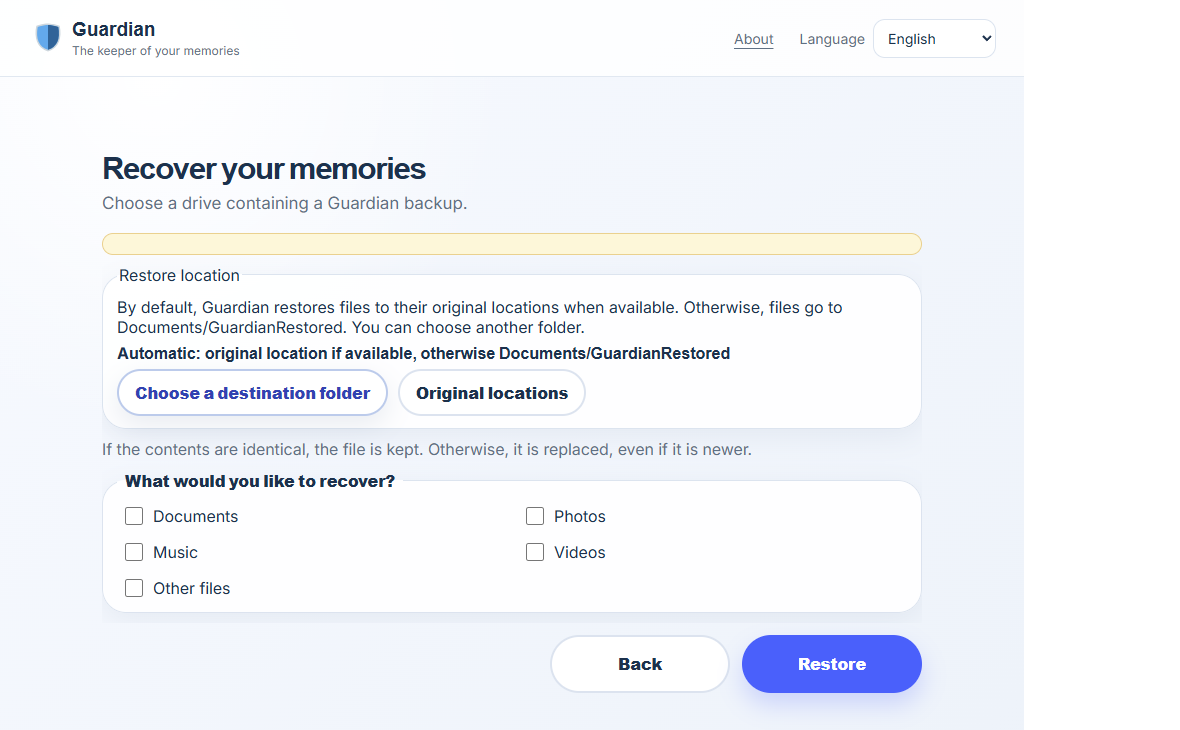
Connect the drive containing your backup and choose “Restore” from the home screen. Leave every category unchecked to recover everything, or select only the ones you want. Guardian can restore files to their original locations when available, or you can choose another folder; otherwise, it uses the folder shown in the interface.
If a file at the destination differs, Guardian replaces it, even if it is newer. The interface explains this before restoration.
Two ways to use Guardian
You can download both versions from the download page:
- Installer: install Guardian on your computer and find its shortcuts on your desktop and in the Start menu.
- Portable version: run
Guardian.exedirectly, without installing it. You can also carry it on a USB drive and open it on a Windows 11 computer.
Put the portable version on a USB drive
- Download the portable version, then connect your USB drive.
- Open File Explorer and go to Downloads. Right-click
Guardian.exeand choose Copy. - In File Explorer, open your USB drive, right-click an empty area and choose Paste.
- On a Windows 11 computer, open the drive and double-click
Guardian.exe. You can then use Guardian to back up or restore your files.
Before you get started
Guardian backs up personal files: it is not a full image of Windows or your applications. Check the proposed selection and add any important folders that are missing, including your Downloads folder if you want to keep it.
You need a Windows 11 computer and a removable drive recognized by Windows, with enough free space. Windows may classify some external disks or USB drives as fixed disks, so they may not be offered as a destination.
Remember to back up regularly and keep your drive separate from your computer.
Support iActu
By supporting iActu, you help develop its software for the price of a coffee and a pastry! Donate €5 or more and PayPal will then redirect you to the Guardian download page.
Donate and access the downloadSource available, all rights reserved · View the code and license on GitHub